SIP Account update for IP of phone system
In some cases, if you have updated your network, changed or removed router / network hardware, and if the IP of your phone system changed - you may need to manually update the "SIP ACCOUNT SERVER ADDRESS" on the desk or cordless phone.
Most of the time a simple "REBOOT" of the phone is all that is required.
The phones will usually search the network after rebooting and update to the IP address of the main phone system. But on some networks - it may not auto-update. If you have confirmed WiFi set-up and the phone is connected on the network, follow these steps to check and confirm the IP of the phone system SIP ACCOUNT REGISTRATION IP ADDRESS:
IMPORTANT - Before proceeding - read this full article first. Also, check with us first for your **Phone System IP address**. Chances are - If you have been directed to this article, we may have already confirmed and provided it to you.
Press the Middle round MENU button.
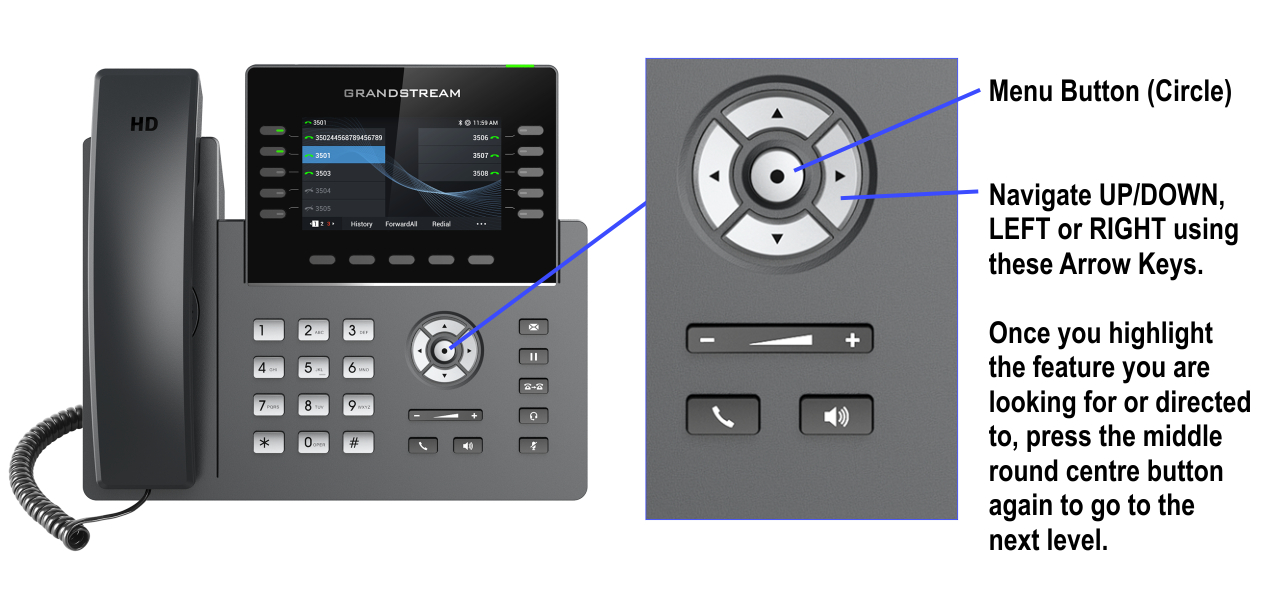
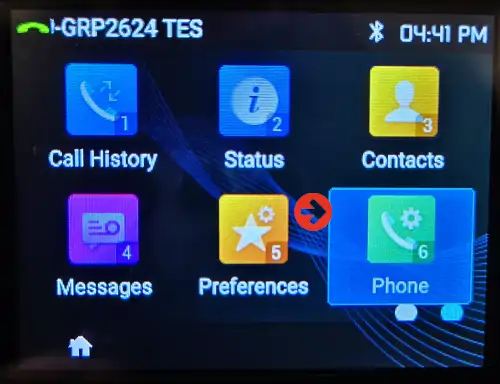
Press the "6" number button or use the arrow keys to highlight the "PHONE" icon:
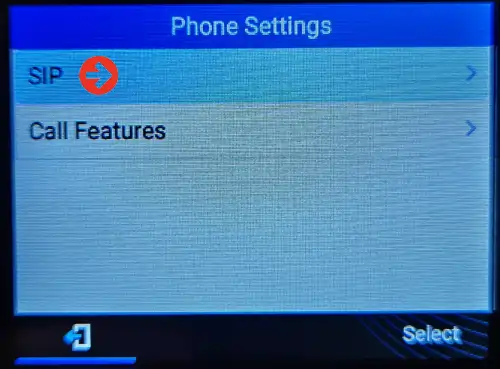
Go to the "SIP" sub-menu. Press "Select" or "arrow key right" to enter sub-menu:
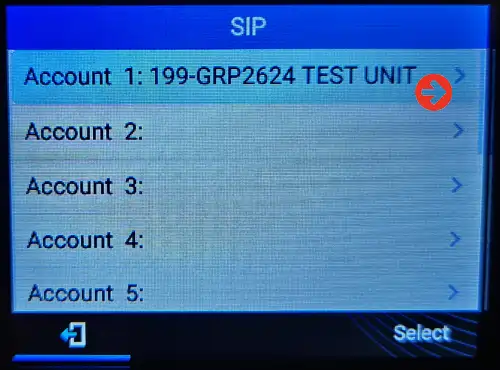
Go to the "ACCOUNT 1 (usually) - press "Select" or "right arrow key" to enter sub-menu:
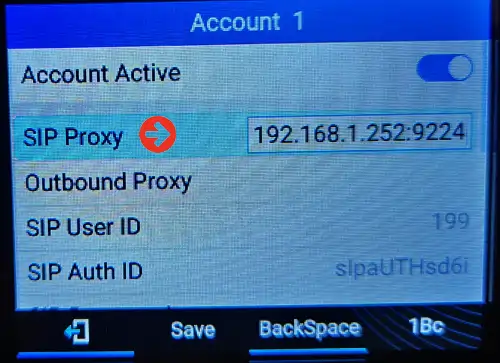
Press the down arrow key to highlight and enter the "SIP Proxy = Server/Phone system IP address).
CAREFUL at this point not to delete it. Just use the LEFT ARROW key to move over to the last three digits BEFORE the ":9224". NOTE: for your system - the :#### will be different, so do not delete that):
Example only - IE: 192.168. 1 . 252 <---the third and second set may need changing...
If the last three only need changing - use the keypad to enter the new IP ending digits. Leave the rest - including the periods. After doing so and the IP looks correct (format = XXX.XXX.X.XXX:xxxx) - you can SAVE and see if the phone then registers. (MAIN SCREEN - STUFF will turn GREEN again.)
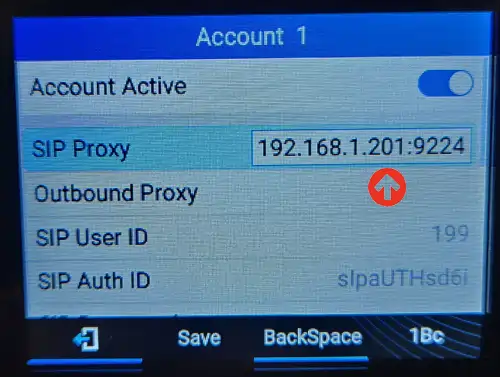
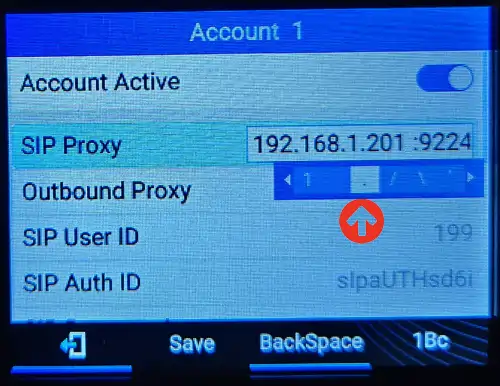
NOTE: If you accidentally DELETE the ". periods" - you can press the 1 key to enter it again. Press a couple of times to highlight it. Usually it is the third one over.
If this process fails, or the phone does not register and turn Green on the main screen again...
Call us for a Remote Session to have us login to the phone on your network to fix it in the phone's webGUI interface.
PBXSystem.ca - IP Desk Phone - SIP ACCOUNT Re-Registration - April 2026